
What to Do When TM SIM Says “Complete” But Doesn’t Work
It’s frustrating when you finish TM SIM registration, see the “Complete” message, and then… nothing. Your phone still shows no signal, can’t make calls, or mobile data doesn’t work. If that sounds familiar, you’re not alone — and the good news is there are quick fixes you can try before getting help.
Why It Happens
Even if the registration step finished successfully on screen, your SIM might not work right away for a few reasons:
Let’s go through the steps to fix it fast.
Give It a Little Time
Sometimes the SIM takes a few minutes or even a couple of hours after showing “Complete” before it becomes fully active on the network. If the registration was just finished, wait 15–30 minutes and check again.You can also read:Are There Hidden Fees After Completing TM SIM Registration?
Restart Your Phone
This simple step can make a big difference:
Restarting forces your phone to reconnect to the network and can kick‑start the service if it was stuck.
Check SIM Card Placement
If the SIM isn’t seated correctly, your phone might not recognize it even if registration is done.
This fixes many “no signal” or inactive SIM cases.
Toggle Airplane Mode
This trick helps refresh your network connection:
This forces your phone to reconnect to available networks and often restores signal quickly.
Check Network Settings
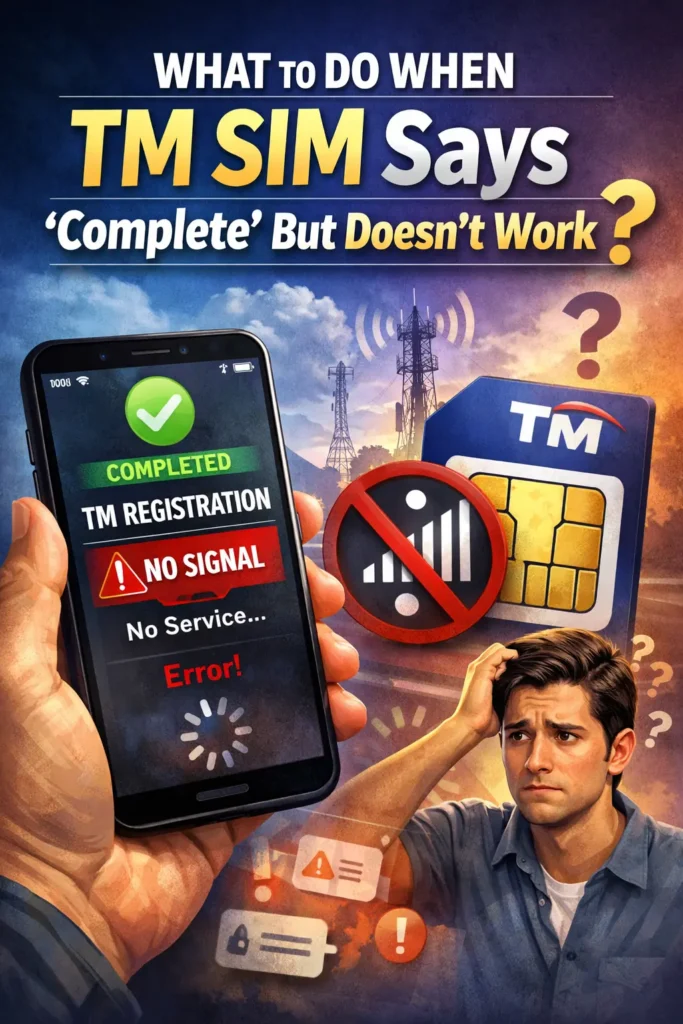
Sometimes phones get stuck on the wrong network type.
Go to:
Settings → Mobile Networks → Preferred Network Type
And choose Auto (LTE/3G/2G)
This helps your phone select the best possible signal.
Test the SIM in Another Device
This is a quick way to know if the problem is the SIM or your phone:
If it works on another device, the issue might be with your phone, not the SIM.
Check for Network Outages or Maintenance
Occasionally network problems happen across areas due to maintenance or outages. Try checking online, asking someone nearby with TM/Globe, or waiting a bit and trying again later — sometimes service just takes time to propagate.
Reach Out to TM/Globe Support
If none of the above works, the next best step is to get help from the provider. Sometimes the SIM needs manual activation, account flags need clearing, or there are backend issues that only support can fix. You can usually reach them via:
They can check your registration status, activation, and signal based on your SIM number.
FAQ’s
Final Words
Seeing “Registration Complete” but still having no service is annoying — but most of the time it’s just a small network delay, phone setting issue, or SIM placement problem. With a few quick steps like restarting your phone, toggling Airplane Mode, and checking your settings, you can usually get your TM SIM working in no time.


