
TM SIM No Signal After Registration Fix
If your TM SIM has no signal after registration, the issue is usually caused by one of a few things. The SIM may not have been fully activated yet. The phone settings may be wrong. The SIM may not be sitting properly in the tray. The phone itself may be the problem. In some cases, the SIM may need to be replaced. Official Globe support for TM says the first things that should be tried are restarting the phone, removing and reinserting the SIM after 30 seconds, turning off Airplane Mode, changing the network mode to LTE, 3G, and 2G Auto, and testing the SIM in another phone.
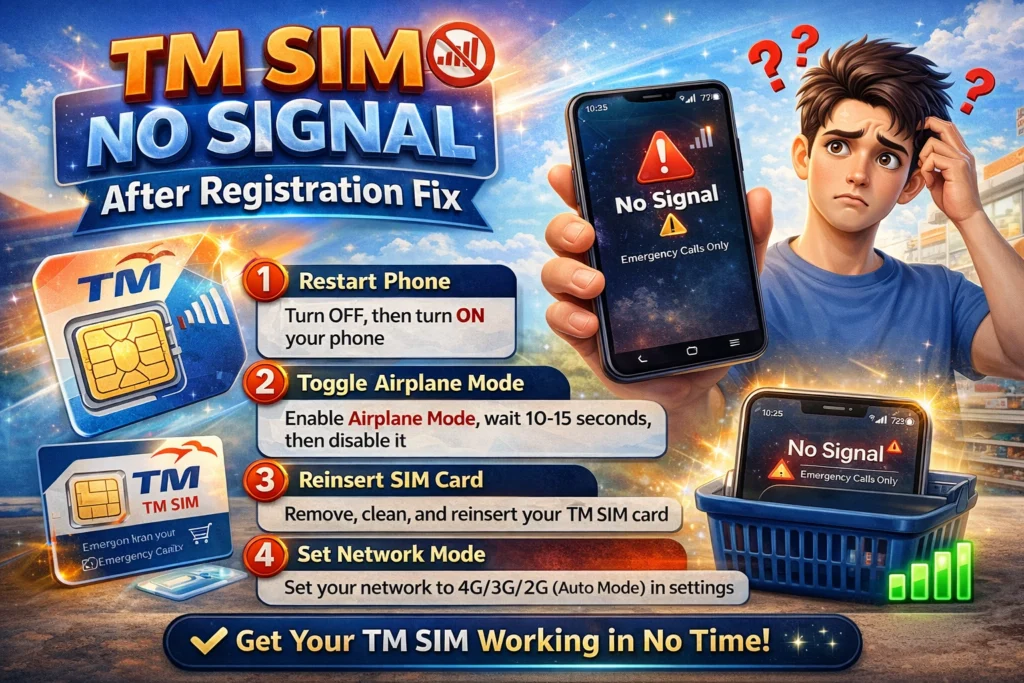
A quick fix should be tried first. The phone should be restarted. The TM SIM should be removed and inserted again after 30 seconds. Airplane Mode should be checked and turned off. Then the network mode should be set to LTE, 3G, and 2G Auto. If signal still is not shown, the SIM should be tested in another phone. If it works there, your phone is likely the issue. If it does not work there, the SIM may need replacement.
Why no signal can happen after TM registration
A lot of articles online mention weak signal, wrong settings, damaged SIM cards, and phone issues. Those points are common across the pages now ranking for this topic. Globe support then confirms the practical checks that should be done first for a no signal problem, which makes the article more useful when both competitor coverage and official support are combined.
Another important point should be understood. Globe says SIMs sold in the Philippines are deactivated until registration is completed through the official platform. Globe also says a new SIM can be registered immediately to activate and start being used. So if registration was started but not fully completed, or if confirmation was not received, activation may not have fully gone through yet.
Step 1
Check that registration was fully completed
TM registration is handled through Globe’s official registration page or the GlobeOne app. It is stated by Globe that registration is free and that new SIMs can be activated as soon as registration is completed. If no confirmation was received after registration, the process should be checked again through the official channel instead of relying on unofficial sites.
Tip
If the SIM was just bought today, a little patience may be needed. If the number was ported from another network, Globe says the signal should switch within 4 hours after the porting code is entered and activation begins.You can also read: Official TM SIM Registration Link 2026
Step 2
Restart the phone and reinsert the TM SIM
This is the first official fix that is recommended by Globe. The phone should be turned off. The SIM should be removed. About 30 seconds should be waited. Then the SIM should be inserted again and the phone should be restarted. Many minor connection problems are cleared by this simple refresh.
A small but useful tip should also be followed here. Dust on the SIM tray should be checked. The SIM should be seated properly. A loose fit can stop the phone from reading the network correctly, even after successful registration. That is why reinserting the SIM is always included in the official steps.
Step 3
Turn off Airplane Mode and set the correct network mode
This part is often missed by users. Globe says Airplane Mode should be turned off. After that, the phone network mode should be manually set to LTE, 3G, and 2G Auto. If the device is stuck on the wrong network mode, signal may not be picked up properly.
If only mobile data is failing but signal bars are still visible, the issue may not be true no signal. Globe says that balance and an active data promo should also be checked when internet is not working. That means the connection problem should be separated into two cases. One case is no signal. The other case is signal present but no internet.
Step 4
Test the TM SIM in another phone
This is one of the most important checks in the official guide. The TM SIM should be inserted into another working phone. If signal appears there, your original phone may need servicing. If no signal appears there either, the SIM itself may be faulty. Globe also says that another Globe SIM can be tried in your phone. If that other SIM works, your TM SIM may need replacing.
This step matters because a registration problem is often blamed first, while the real issue may be a damaged SIM tray, an older phone radio problem, or a faulty SIM card. A quick swap test can save a lot of wasted time.
Step 5
Check if the SIM is LTE ready
An older SIM can sometimes be the reason for weak or missing service on newer network settings. Globe says LTE support can be checked for free by texting SIM CHECK to 8080. A reply is sent confirming whether the SIM supports LTE. If it does not, an upgrade at a Globe Store should be considered while keeping the same number.
This is a very useful fix for users on older SIM cards. If your TM SIM was registered successfully but still feels dead or unstable, the issue may be linked to the SIM version rather than the registration itself.
Step 6
Replace the SIM if it is defective
If the SIM fails in more than one phone, replacement should be requested. Globe says SIM replacement can be requested through the GlobeOne app or at any Globe Store. For a defective SIM, the actual physical SIM and one valid ID are required at the store. For a lost SIM, Globe lists the SIM bed or GCash card if available, a notarized affidavit of loss, and two valid IDs with at least one government ID.
If replacement is requested through GlobeOne, the account should be enrolled in the app using the same mobile number, and the request can then be tracked in SIM Services. If replacement is done at a Globe Store, Globe says the newly issued SIM is activated within 24 hours.
What should be done first in the shortest time
If you want the fastest path, this order should be followed.
First, registration completion should be confirmed through the official Globe page or GlobeOne. Second, the phone should be restarted and the SIM should be reinserted after 30 seconds. Third, Airplane Mode should be turned off and network mode should be set to LTE, 3G, and 2G Auto. Fourth, the SIM should be tested in another phone. Fifth, LTE readiness should be checked by texting SIM CHECK to 8080. Sixth, a GlobeOne request or Globe Store visit should be used if the SIM appears defective.
A simple tip that can improve rankings for this article
Based on current Google guidance, pages like this are usually helped by clear headings, direct answers near the top, original value, and wording that matches the way users search. That is why this draft is focused on one exact problem, short action steps, and official support details that many thin competitor pages do not include.


