
TM SIM Registration SMS Confirmation Check — Easy Guide
If you just registered your TM SIM card, you might want to know how to check your registration through SMS confirmation. This is helpful if you didn’t save your reference number or just want to make sure everything went through properly. I’ll walk you through the easiest ways to check using text messages and other simple methods.
Why You Should Check SMS Confirmation
After you register your TM SIM, the system should send you a text message confirming your registration. This shows that your SIM is officially tied to your name and details.
Checking the confirmation matters because:
It proves your SIM is registered and active
It ensures you won’t lose service later
You can use promos, data, and services without interruption
It helps you avoid issues if you lost the reference number
SMS confirmation is the easiest way to check because it works even without internet.You can also read: TM SIM Registration Pending Status Fix – Simple & Easy Guide
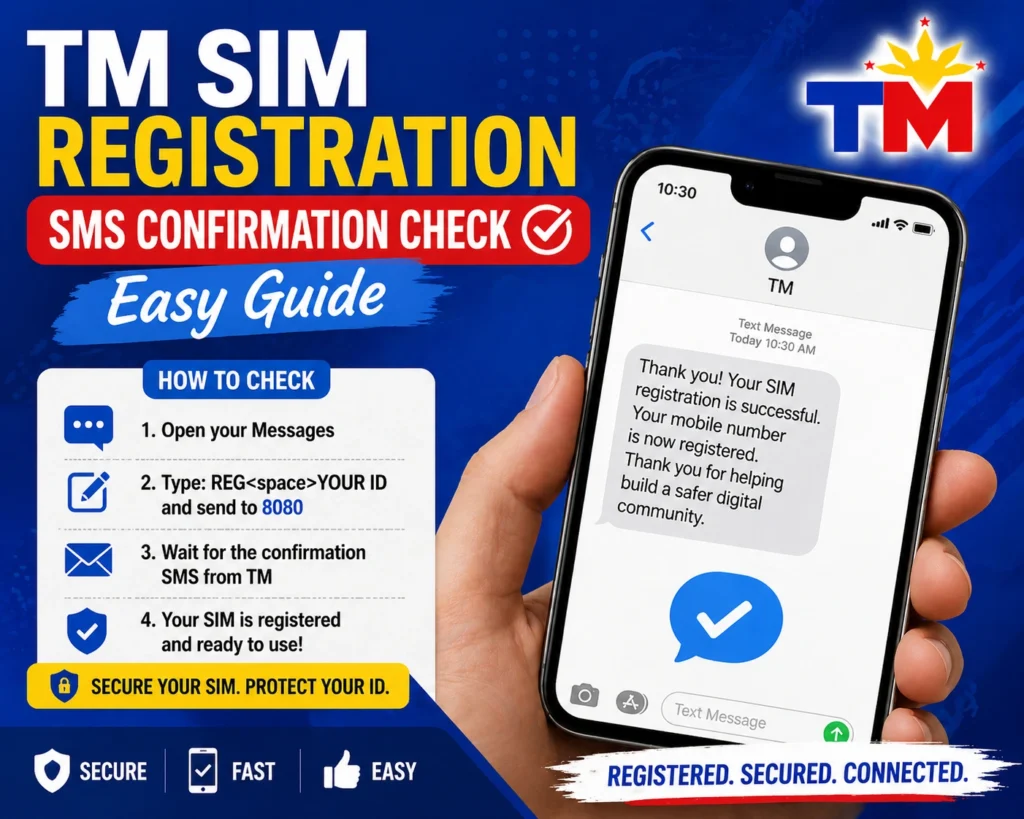
How to Check TM SIM Registration by SMS
Here are the simple steps to check your TM SIM registration using SMS:
Open Your Messaging App
Open the text message app on your phone where your TM SIM is inserted.
Type the Confirmation Code
Type this message exactly:
This is the code used to check if your SIM is registered.
Send It to 8080
Send that message to 8080 — this is the official TM SIM registration check number.
Wait for the Reply
After a few moments, you should get a reply message that says whether your SIM is registered or not.
SMS confirmation is handy, especially when you can’t access the internet or a portal.
What It Means If You Don’t Get SMS Confirmation
If you didn’t get any confirmation message, don’t panic. Here are a few reasons why:
In these cases, try the SMS check again after a few minutes. If it still doesn’t work, you can check your registration using other methods like the official portal or the GlobeOne app.
Other Ways to Check Your Registration Status
If SMS isn’t working, you can also check in these ways:
You can visit the TM registration site, enter your mobile number, request an OTP (one‑time password), and the page will show whether your SIM is registered or still pending.
If you use the GlobeOne app, your registration status shows right on the home screen after you log in.
If all else fails, visit a Globe or TM store and ask a staff member to check your registration for you.
Tips for a Successful SMS Confirmation Check
SMS check is one of the quickest ways to confirm your registration without logging in or using the web.
FAQ’s
Final Words
Checking your TM SIM registration with SMS confirmation is quick and easy. Just send the message to 8080 and wait for the reply. This gives peace of mind and ensures your SIM is officially recognized.
If the SMS method doesn’t work right away, try again or use the online tools available. Saving your confirmation and reference info helps you avoid future issues.


