TM SIM Registration for Dual SIM Phones 2026
Registering your TM SIM card on a dual SIM phone doesn’t have to be complicated. Whether you’re using a new dual SIM phone or an older model, the process for registering your SIM is almost the same. Here’s everything you need to know to get your TM SIM activated, keep your phone working properly, and avoid common issues during registration.
Quick answer
To register your TM SIM on a dual SIM phone, simply go to the official TM registration page, use the GlobeOne app, or visit an authorized TM store. The registration process asks for basic personal details and a valid government-issued ID. After that, you should be good to go! If you face issues with dual SIM setup, just follow these simple steps to resolve them.
How to register TM SIM on a dual SIM phone
The registration process for TM SIM cards is simple and the same for both single and dual SIM phones. Here are the main steps:
Do I need to register both SIMs on my dual SIM phone?
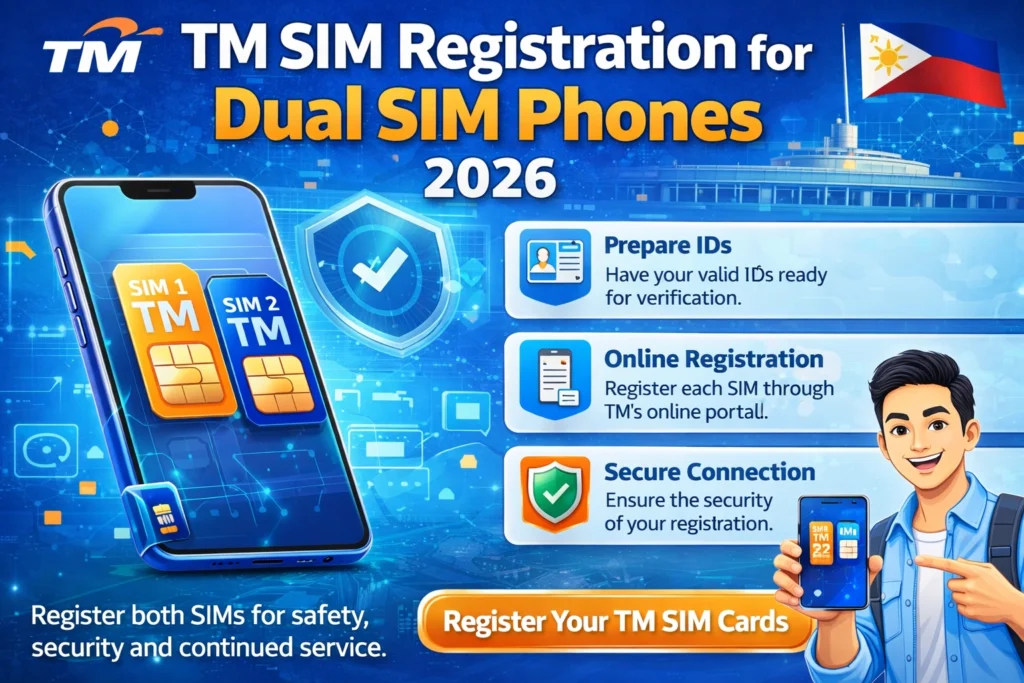
If you are using a dual SIM phone, only your TM SIM card needs to be registered. Your second SIM, if it’s from another carrier, must be registered separately with that provider. The registration for each SIM is done through the respective carrier’s system. TM registration only applies to your TM SIM, so make sure to follow the correct process for your second SIM as well.
Common issues with dual SIM phones during registration and how to fix them
Not being able to select the correct SIM slot
When using a dual SIM phone, some users find it difficult to register the correct SIM slot (SIM 1 or SIM 2). Make sure you’re selecting the correct slot during the registration process to avoid any issues with service after activation
No OTP received during registration
If you don’t receive the OTP (One Time Password) needed to complete your registration, make sure you have a stable internet connection or signal. If the OTP does not arrive within a few minutes, try resending it. If the issue persists, it might be a good idea to wait a bit and retry after 24 hours as some users report issues with OTP limits after multiple attempts.
Blurry or unclear selfie
For registration, your selfie with the government-issued ID needs to be clear and readable. If the photo is blurry, rejected, or poorly lit, try retaking the photo with better lighting and make sure the whole ID and your face are clearly visible in the frame
ID not accepted
TM requires a valid government ID, and certain IDs may not be accepted during registration (e.g., paper IDs, expired IDs). To avoid rejection, use a PVC-type ID, such as a driver’s license, passport, or voter’s ID, and make sure the ID has not expired
Registration stuck or not processed
If your registration is stuck and you have not received any confirmation after submission, double-check the details you entered. Make sure everything is correct, including the ID number and your full name. If the issue continues, contact Globe’s official customer support for assistance
How to resolve the “retry limit” error
If you receive a message stating “retry limit exceeded” during the registration process, it means you’ve made too many attempts to enter your details or submit the form. The best thing to do is to wait and try again later. Avoid submitting the form repeatedly as that can trigger temporary blocks. Users have reported receiving this message after repeated attempts to submit the form or after requesting too many OTPs.
Globe recommends waiting 24 hours before attempting again. This ensures that the system clears any temporary lock placed on your account.
FAQ’s
Final Words
TM SIM registration for dual SIM phones follows the same simple process as single SIM registration. The key differences come down to selecting the correct SIM slot and making sure your registration information is correct. Ensure you use a valid government-issued ID and take a clear selfie. If you face any issues, waiting for the retry limit to reset, checking your signal, or updating your app can resolve most problems.