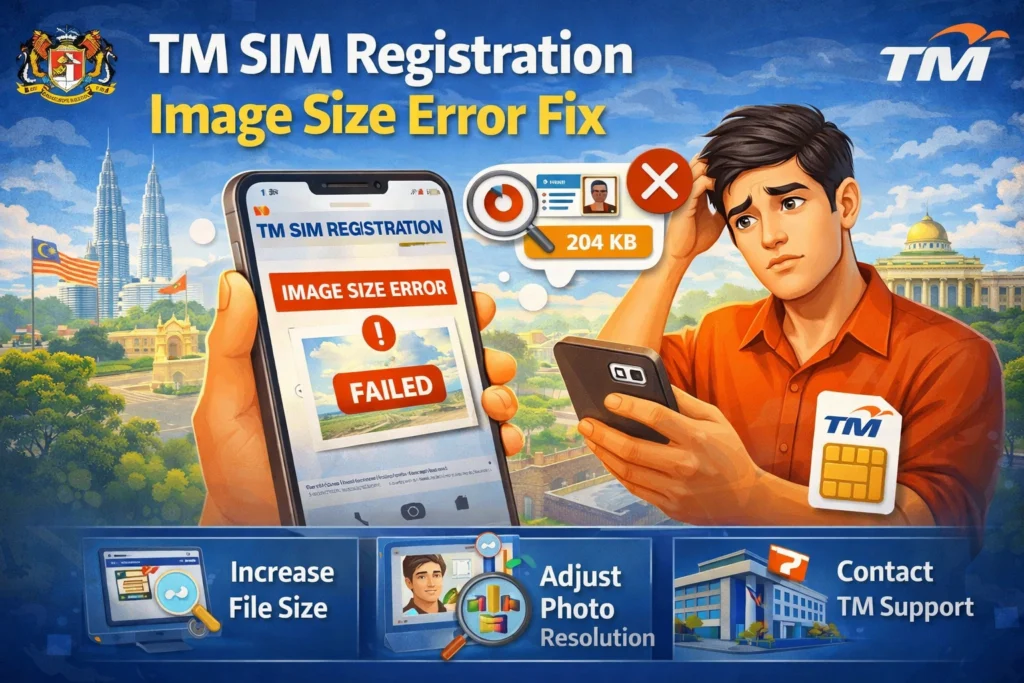
TM SIM Registration Image Size Error Fix
If a TM SIM Registration Image Size Error is being shown, the problem is usually caused by a photo that is too large, too blurry, too dark, or not clear enough for verification. A mismatch between the uploaded ID and the details entered on the form can also trigger an error. Globe’s official SIM Registration help says the selfie should be taken in a well lit place with a plain background, glasses should be removed, the ID should be clear and unexpired, and the details entered should match the uploaded ID. TM users are directed to the same Globe registration system, so these rules apply here too.
A useful thing should be understood before anything else. Many competitor articles still mention a 2 MB limit, but Globe’s current registration guide includes a 4 MB image limit in one active registration flow and even suggests lowering camera settings or taking a screenshot if needed. So if your image is large, it should be reduced first, but the safer advice is to keep the file small, clear, and easy to read rather than trusting old pages that only repeat 2 MB without official backing.

Why this error happens
This error is usually seen when the uploaded selfie or ID photo is not accepted by the system. That can happen when the image is too large, the face is not clear, the ID photo is dark or blurry, or the information typed into the form does not match the ID exactly. Globe’s official help highlights image clarity and matching details as key checks. Competing pages also commonly mention file size, format, browser issues, and unstable internet, but those points are often repeated without the same official detail.
Quick answer
The fastest fix is usually this. A fresh selfie should be taken in good light. The front of the ID should be made clear and readable. The image file should be reduced if it is too large. Then the name, birthday, and other details should be checked again so they match the ID exactly before upload. This approach is the closest match to Globe’s current official guidance.You can also read: TM SIM Registration Step by Step 2026
Step 1
A clear selfie should be taken
The selfie should be taken in a bright place with a plain background. Glasses and anything blocking the face should be removed. The full face should be visible. Globe’s help page specifically says the selfie should be well lit and that accessories such as eyeglasses should be removed when an ID mismatch error appears.
Tip
A front camera photo that looks fine in your gallery can still fail on upload if shadows are present. A brighter photo is usually accepted more easily.
Step 2
The ID photo should be checked carefully
The front of the government ID should be uploaded clearly. The ID should not be expired. The text and photo on it should be easy to read. Globe’s help says the ID should be clearly visible, unexpired, and well lit. Globe also lists accepted IDs such as passport, National ID, driver’s license, and other government IDs for SIM registration.
Step 3
The image size should be reduced
If the file is too large, it should be made smaller before upload. Globe’s registration guide says images should not exceed 4 MB in one current registration flow and suggests adjusting camera settings or taking a screenshot if needed. That makes resizing one of the safest first fixes when an image size error is shown.
A simple way can be used here. The photo can be taken normally, then a screenshot of the photo can be made. This often reduces the size without making the image unreadable. That same screenshot tip is also mentioned in Globe’s registration guide.
Step 4
Your details should be matched with the ID
Even when the photo looks fine, the upload can still fail if the name, birth date, or other personal details do not match the ID exactly. Globe’s help page says this should be checked when the system says the details and the ID did not match.
A common mistake is made when a nickname is entered instead of the full legal name shown on the ID. Another problem is caused when one number in the birth date or ID details is typed wrong. Small mistakes can delay the whole process.
Step 5
A stable connection should be used
A stable mobile data or Wi Fi connection should be used during upload. Many competing pages mention connection issues as a cause of photo upload failure, and that is reasonable because an interrupted upload can fail even when the image is correct. If the page freezes, the upload should be tried again after reconnecting or refreshing.
Step 6
Another browser or device can be tried
This tip is repeated across many ranking pages for this topic. If the photo still is not uploading, another browser or another phone can be tried. Sometimes the issue is caused by the browser session rather than the image itself. While this point is not stated as directly in Globe’s official SIM help, it is commonly advised across current ranking pages and is useful as a backup step.
What should be done if the error still remains
If the upload still fails after the image is resized and the details are corrected, help should be requested from Globe. Globe’s official SIM Registration help says users whose SIM still is not working after registration should contact Globe Telecom on Facebook Messenger or visit the nearest Globe Store. Since TM uses Globe’s registration system, that is the official next step for unresolved cases.
Simple checklist before you upload again
A quick check should be done before the next attempt.
The selfie should be bright and clear.
The face should not be covered.
The ID should be unexpired and readable.
The file should be kept small.
The name and other details should match the ID exactly.
A stable connection should be used.
These checks line up with Globe’s official SIM Registration help and fix the most common problems seen on competitor pages.
FAQ’s
Final Words
TM SIM Registration Image Size Error is usually not a serious issue. In most cases, it is fixed when a clearer selfie is used, the ID is made easier to read, the image size is reduced, and the typed details are matched with the ID exactly. The best part is that Globe’s own help already points to the same fixes, so the problem should be handled without guessing.