
TM SIM Selfie Verification Failed Fix Easy Solutions in 2026
If you’re registering your TM SIM and getting a “Selfie Verification Failed” message, it can be frustrating. You’re not alone — this happens to many people. The good news? There are easy ways to fix it so you can complete your SIM registration quickly.
In this guide, I’ll explain why selfie verification fails and how to fix it step by step, using clear language and practical tips.

Why Your TM SIM Selfie Verification Is Failing
Selfie verification is part of the TM SIM registration process to confirm your identity. When it fails, it usually happens for these reasons:
Photo quality problems
Blurry, dark, or low‑resolution selfies often get rejected. The system needs a clear image to match your face with your ID.
Incorrect angle or pose
If your face isn’t straight, or part of your face is covered, the verification may fail.
Photo size or format issues
The upload may fail if the file is too large or the wrong format
Bad lighting
Shadowed or uneven lighting makes it hard for the system to read your face
Technical errors or weak internet
If your connection drops during upload, the verification may not complete
Simple Steps to Fix Selfie Verification Failed
Here’s how to fix selfie errors easily:
Take a Clear, Well‑Lit Photo
Tips:
Ask someone to take your selfie — it’s often clearer than a front‑camera selfie.
Use a Proper Photo Size and Format
Make sure your photo is:
If your photo format isn’t accepted, convert it on your phone or with a simple photo app.You can also read: How to Know if Your TM SIM Is Registered in 2026
Avoid Shadows and Bright Reflections
Light should be even across your face. Avoid:
Strong sunlight from only one side
Shadows from overhead lights
Reflections on glasses
Aim for soft light that evenly lights your face.
Check Your Internet Connection
A poor connection can cause upload errors.
Try a Different Browser or Device
If the selfie still won’t upload:
Sometimes the website works better on a different device.
Photo Tips to Help the System Accept Your Selfie
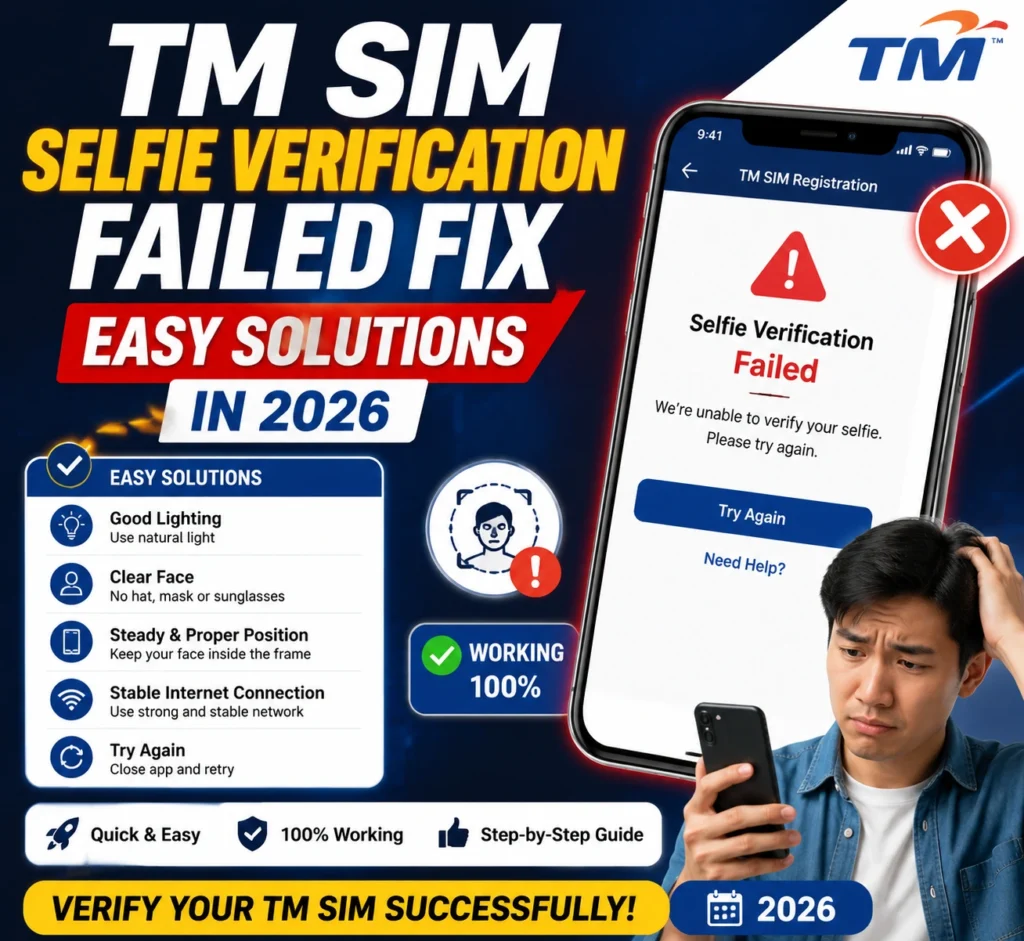
Here are extra tips that really help:
If You Keep Getting Selfie Verification Failed
If you still have problems after trying all steps:
Clear your browser cache and cookies — sometimes old data blocks uploads.
Restart your phone or browser — simple resets fix many issues.
Wait and try again later — sometimes the system has temporary issues.
Go to a TM or Globe store — staff can help you finish the registration in person.
FAQ’s
Final Words
Getting a “Selfie Verification Failed” message on your TM SIM registration can be annoying, but it’s usually easy to fix. Most issues happen because of lighting, photo angle, or file problems. Take your time to capture a clear, well‑lit selfie and make sure it meets the file requirements.
If all else fails, support staff at a store can help you finish the process.
You’re closer than you think — just one better selfie away!


